SlydeTutorialsWorking as a Team
Get started

Tutorial 04 · 2 min read

Working as a Team

Decks get made by several people on one deadline, everyone in the file at once. This tutorial covers workspaces, live editing, assignments and comments, chat, sharing outside the team, and the trash that makes deleting survivable.

Workspaces and invites

Requests land in Needs your attention; assign a review and talk it through in chat.
  1. Open your company workspace — it holds the decks, themes, Brain and image library, shared.
  2. Invite teammates by email. Roles run from owners who manage the workspace to members who make decks.
  3. Use the switcher to move between workspaces — one account can belong to several.
NORTHLIGHT STUDIO — WORKSPACEBrainThemesDecksLibraryShared, not per-file: everyone’s decks draw fromthe same facts and the same look.OWNERADMIN · MEMBERSINVITE BY EMAILPersonalSWITCHERONE ACCOUNT, SEVERAL WORKSPACES — AGENCY-SIDE AND CLIENT-SIDE STAY APART
One workspace, shared everything: Brain, themes, decks, library.

Sharing the whole workspace — not files one at a time — is what keeps ten people’s decks drawing on the same facts and the same look.

Edit together, live

Open a deck a teammate has open and you’re in it together: live cursors show who’s where, and edits merge at the element level — you retitle the headline while they recolor the chart. No locks, no mailed versions; review happens inside the deck.

Assign slides

  1. Assign a slide to the person it needs — the numbers to finance, the case study to its lead.
  2. It lands in their Needs your attention queue on the home screen and persists until done.
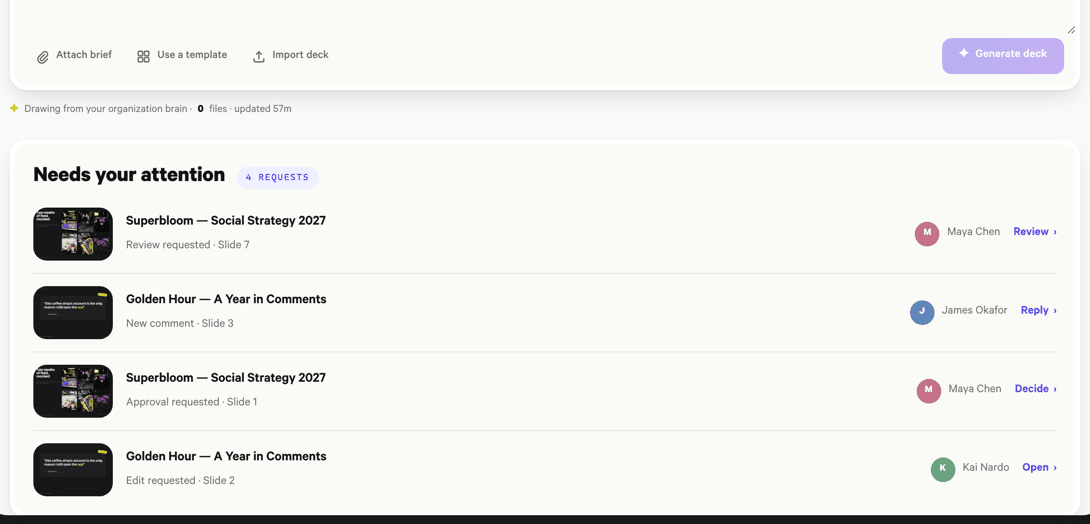
The Needs your attention panel: a review request, unresolved comments, an approval and an edit request, each on a named deck
Needs your attention: reviews, approvals, unresolved comments and edit requests, queued until they’re done.

Comment with @mentions

  1. Comment on the exact element — the thread hangs on the headline or chart it’s about.
  2. Type @ to @mention a teammate; they’re notified into their attention queue.
  3. Resolve the thread when the point is settled, and it folds away.

Slyde Chat

Slyde Chat is one realtime conversation per deck, always docked in the editor — the lane for everything that isn’t about one element: “I’m taking the back half,” “client call moved to 3.” Deck talk stays with the deck.
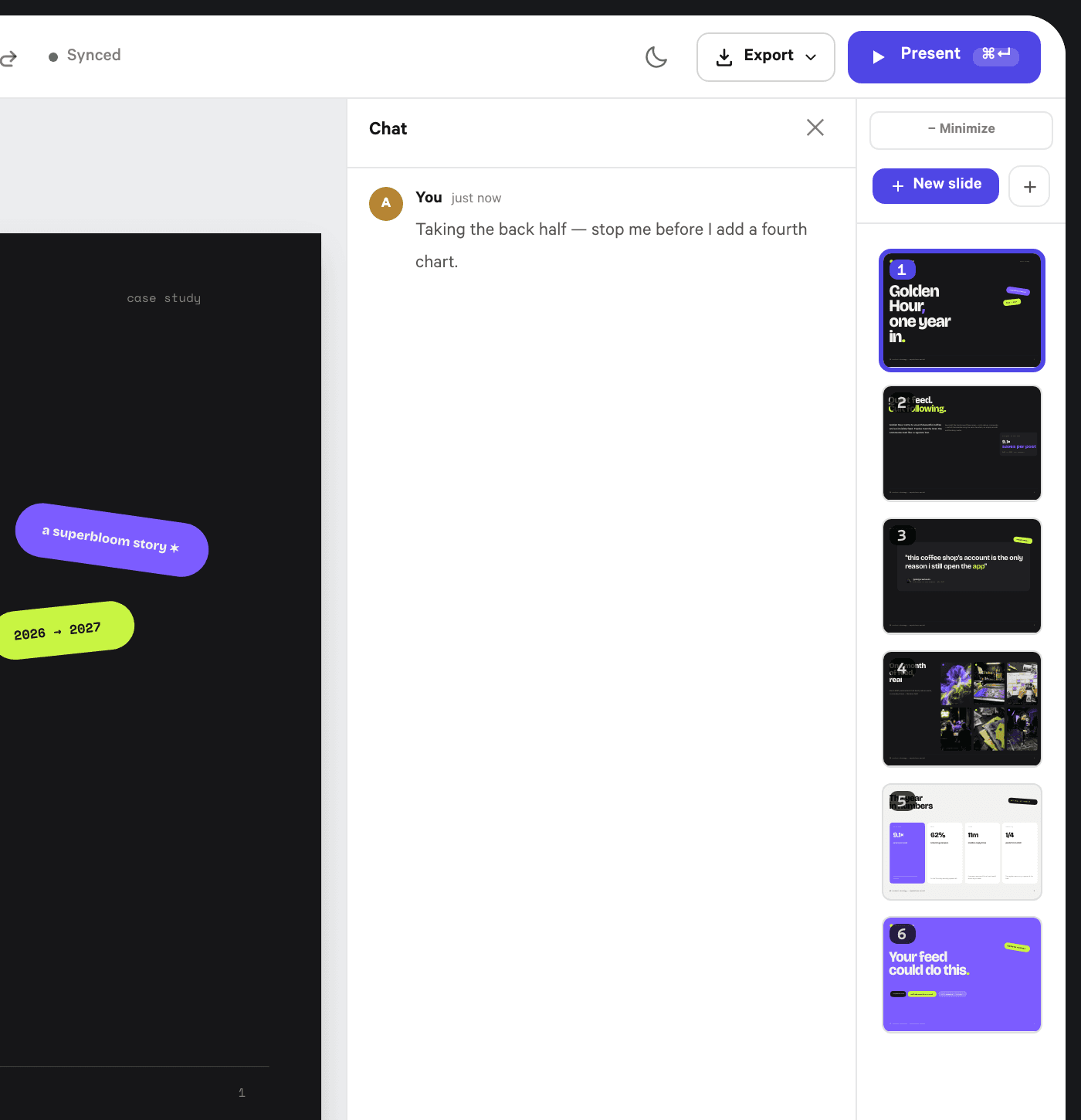
Slyde Chat docked in the editor with a message posted and a composer reading “Message — @ to mention, # to tag a slide”
Slyde Chat, docked beside the filmstrip — @ to mention a teammate, # to tag a slide.

Share links and guest editing

  1. Send a Share link for a read-only view in the browser — no account, nothing to install.
  2. Send a Guest editor link when an outsider needs to edit: they get that deck, and only that deck, without a Slyde account.
  3. Revoke either at any time — links are per-deck, and cutting one off moves nothing inside the workspace.
WORKSPACE MEMBERS — EVERYTHINGGUEST EDITOR LINK — EDITS ONE DECK, NO ACCOUNTSHARE LINK — VIEW ONLYjust a URLYOUR CLIENT’S LEADACCESS NARROWS OUTWARD — AND EVERY LINK IS PER-DECK, REVOCABLE
Members work in the workspace; guests edit one deck; viewers see a read-only deck.

Delete safely

Deletes are soft: a deleted deck sits in the trash for 30 days, restorable with one click — back to its lists, intact. Only after the window lapses, or someone deletes it from the trash, is it gone. Clean freely.